Add your profile links
Link your ORCID, Google Scholar, LinkedIn and other profiles.
Under Edit Profile, Social Links you add the places visitors can find you elsewhere. This section is open on every plan.
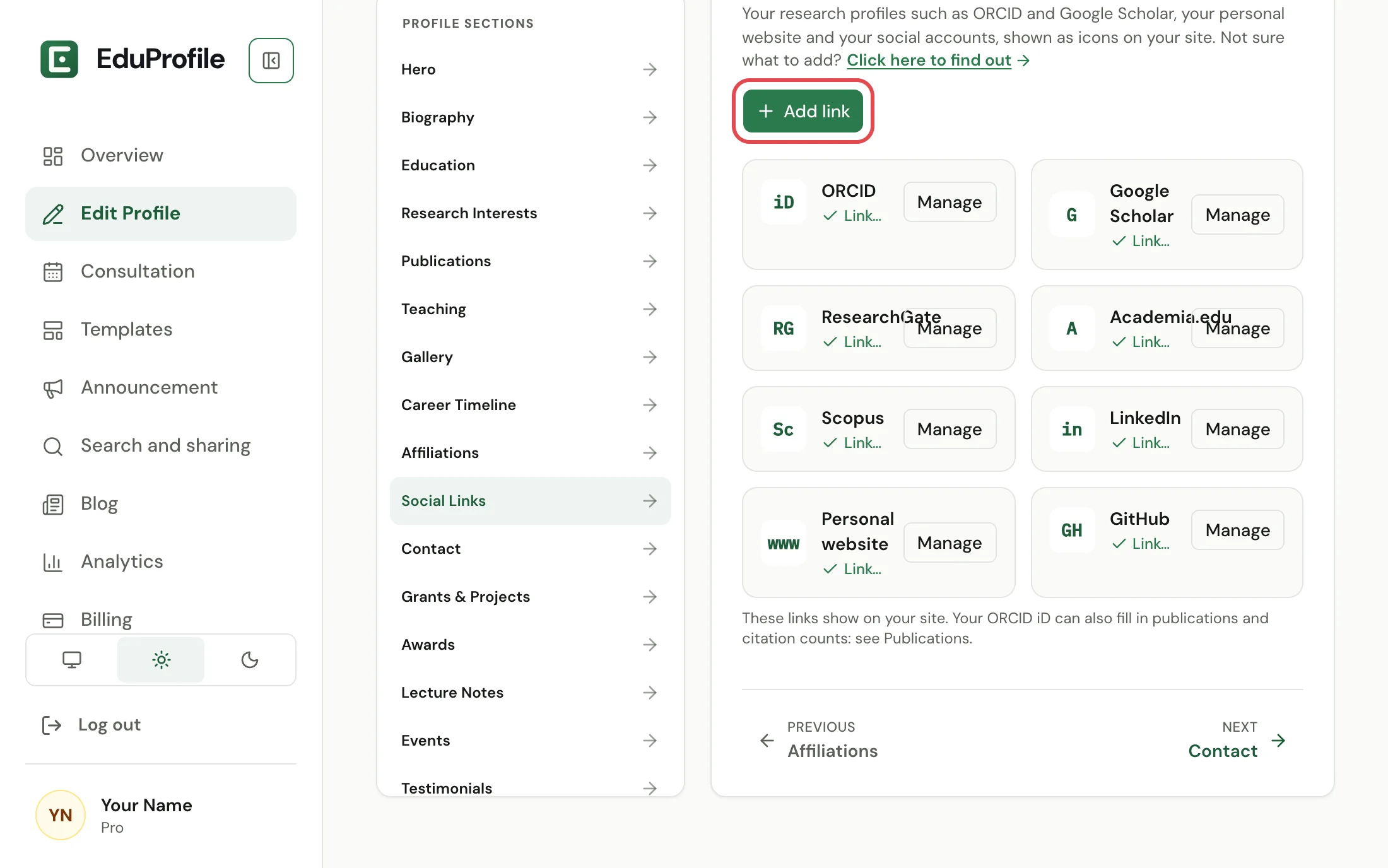
Add a link
- Press Add link.
- Choose the platform from the list. It shows only the ones you have not added yet.
- Paste the address of your profile and save.
You can have one link for each platform. Each linked platform is shown as a card, and Manage on a card changes or removes it. Cards always appear in the same order, so they cannot be rearranged by hand.
The platforms
ORCID, Google Scholar, ResearchGate, Academia.edu, Scopus, Web of Science, Semantic Scholar, SSRN, LinkedIn, a personal website, X, GitHub and YouTube.
What each address must look like
- ORCID needs your own link, such as
https://orcid.org/0000-0002-1825-0097. - Google Scholar needs your profile link, which has
citations?user=in it. - A personal website can be any address that starts with
https://. - Every other platform needs an
https://link on that platform's own site, so a LinkedIn card must point to LinkedIn.
If an address is not accepted, the message says what is wrong.
Your ORCID link does more
When your ORCID link is saved, you can use it to list your works and import them, and to update your citation counts. See Add publications in bulk. An ORCID or Google Scholar link also ticks an item on your Overview checklist.
Still stuck? Contact us.